
Video study & clips
Tools & Media is where you study your game. Its Videos, Clips and Replays tabs collect guides, short creator clips and pro replays for the selected character.
Open any of them to watch with your notes beside it. Mark the moments that matter and turn them into notes, Tech Library entries and tasks without leaving the video. The example below uses Joe Ebios's Luke beginner guide.
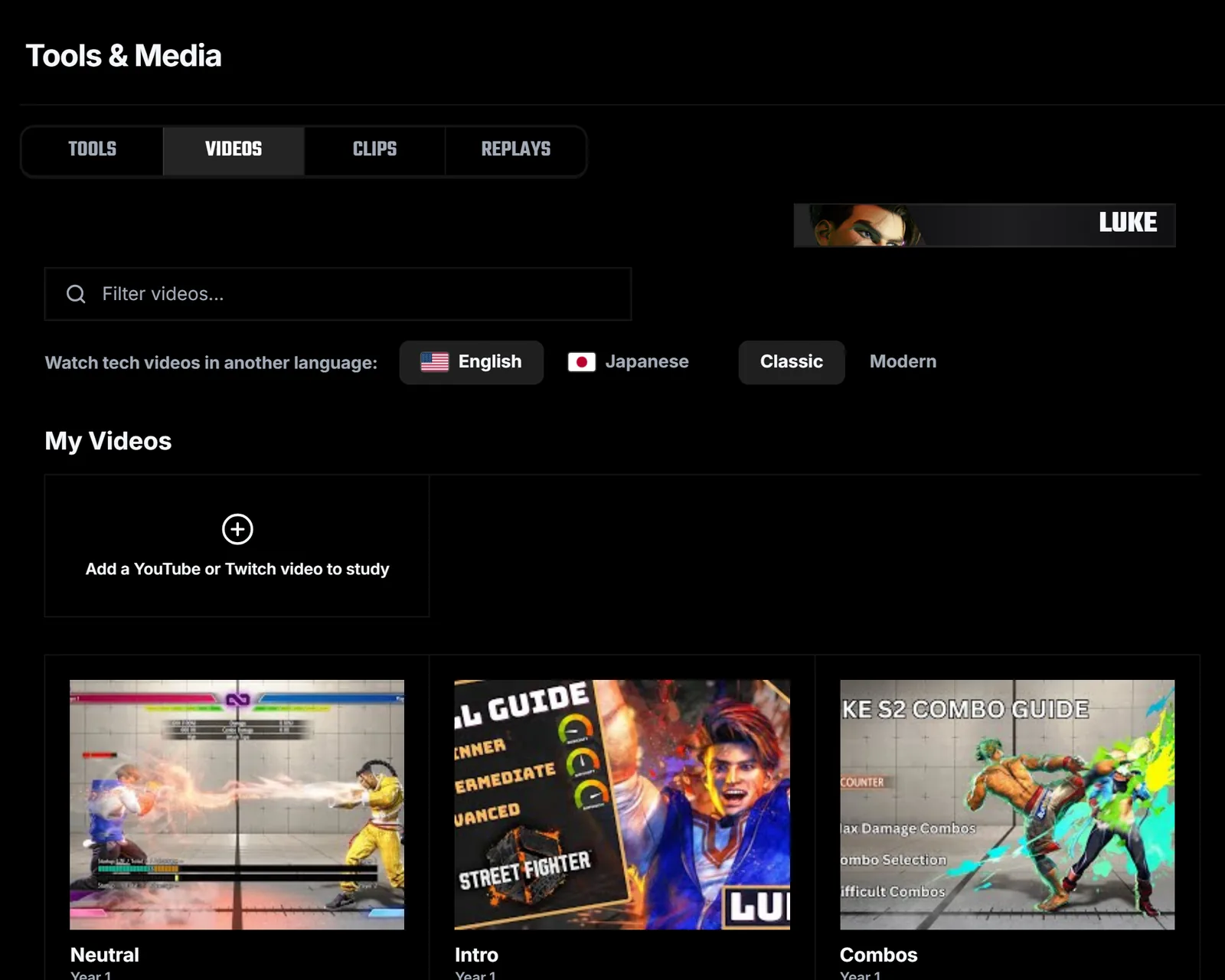
Pick something to watch
Open Tools & Media and choose Videos, Clips or Replays. Under My Videos you can add any YouTube or Twitch video you want to study.
Study with your notes beside the video
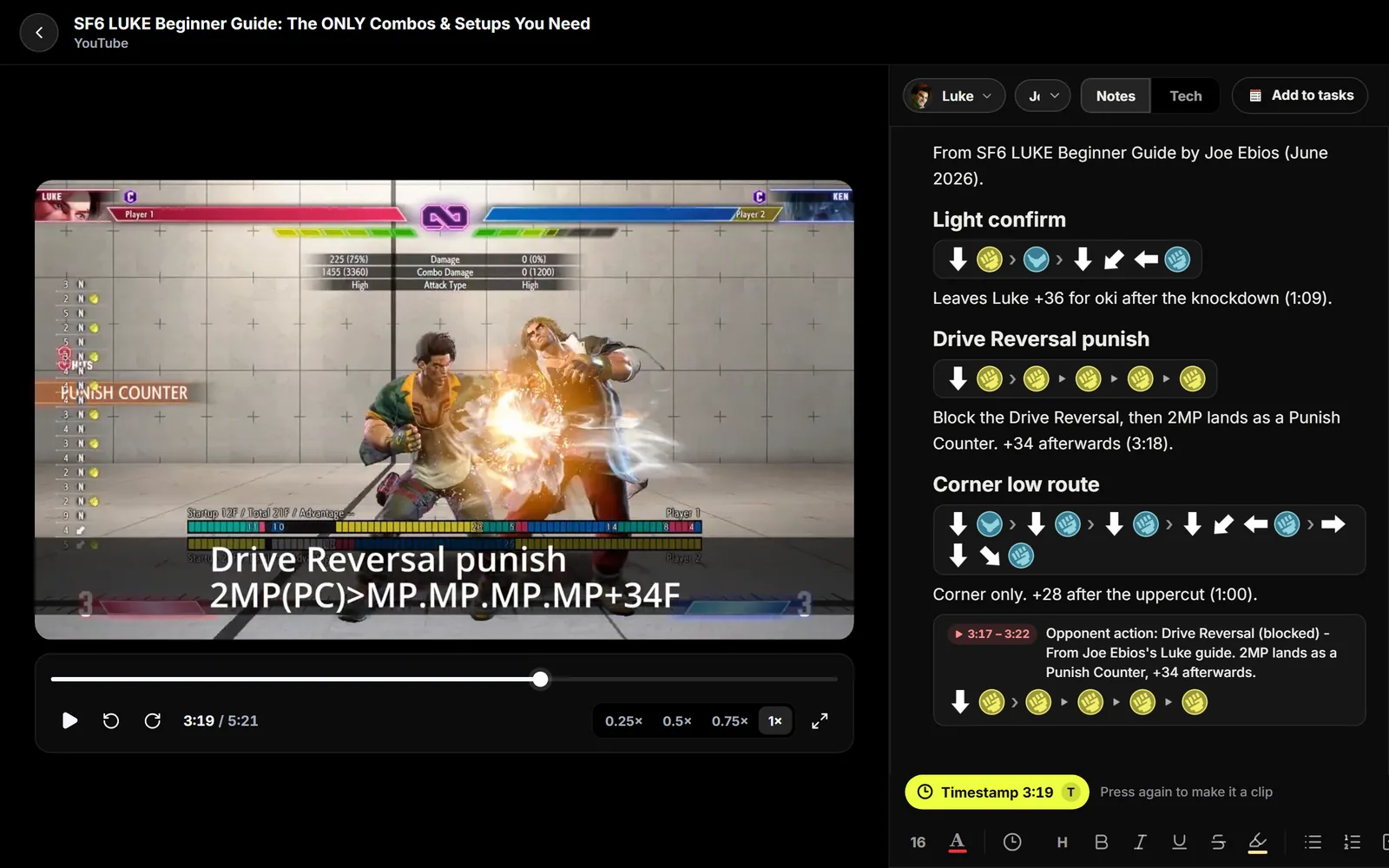
The video plays on the left and your notebook page sits on the right. Use the speed buttons to slow a sequence down and the arrows to jump 5 seconds back or forward. Saved clips appear in the note and as markers on the timeline.
Mark a clip
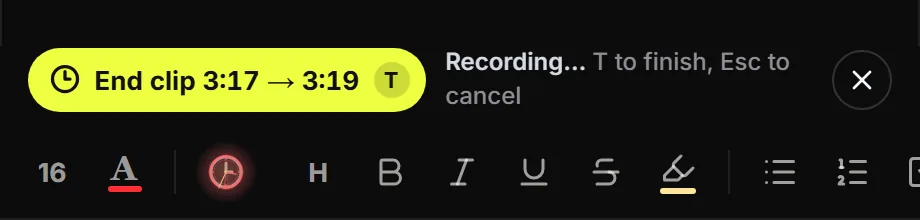
Press T, or select Timestamp, to mark the start of a moment. Press T again to mark the end, or Esc to cancel.
Check the clip and describe it
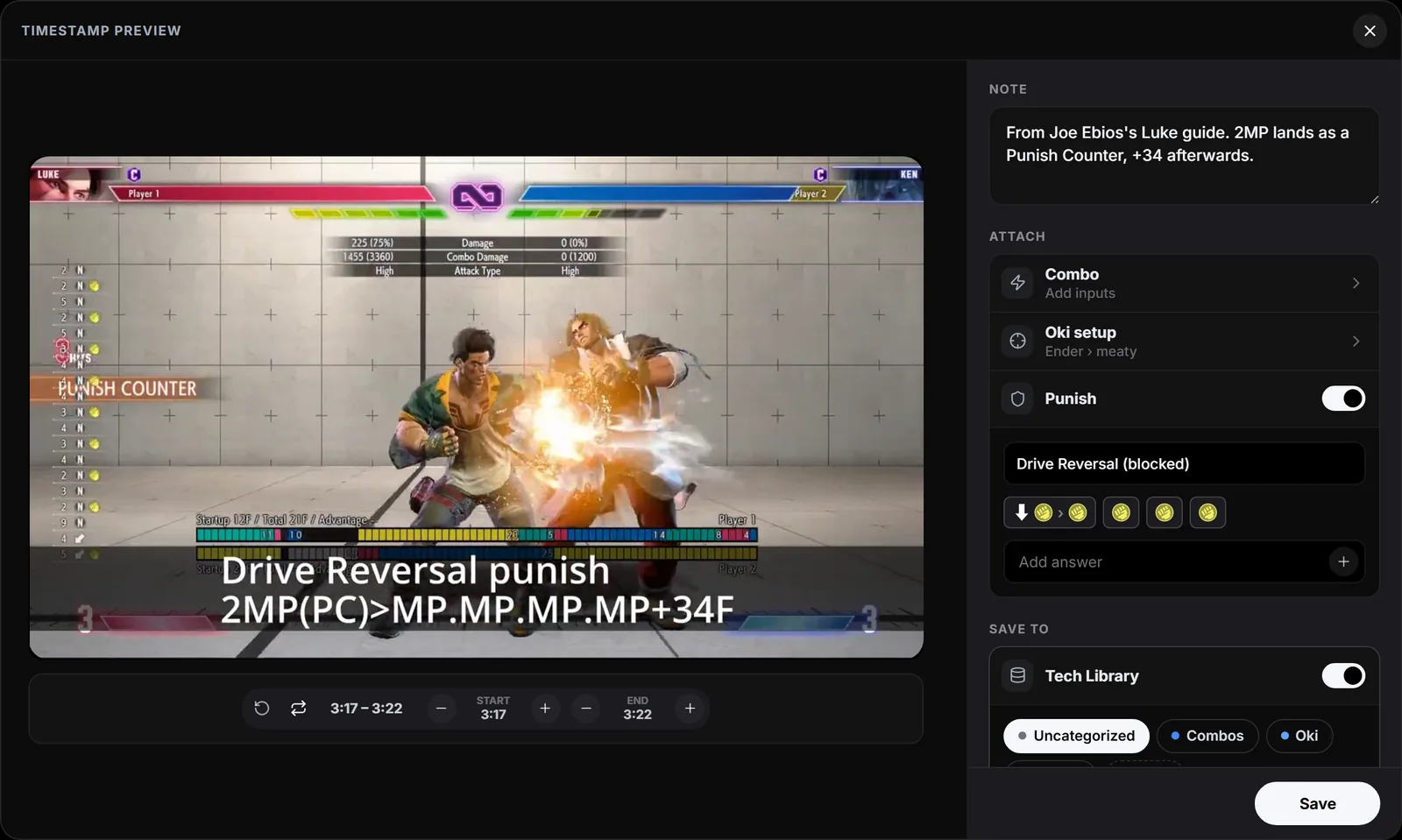
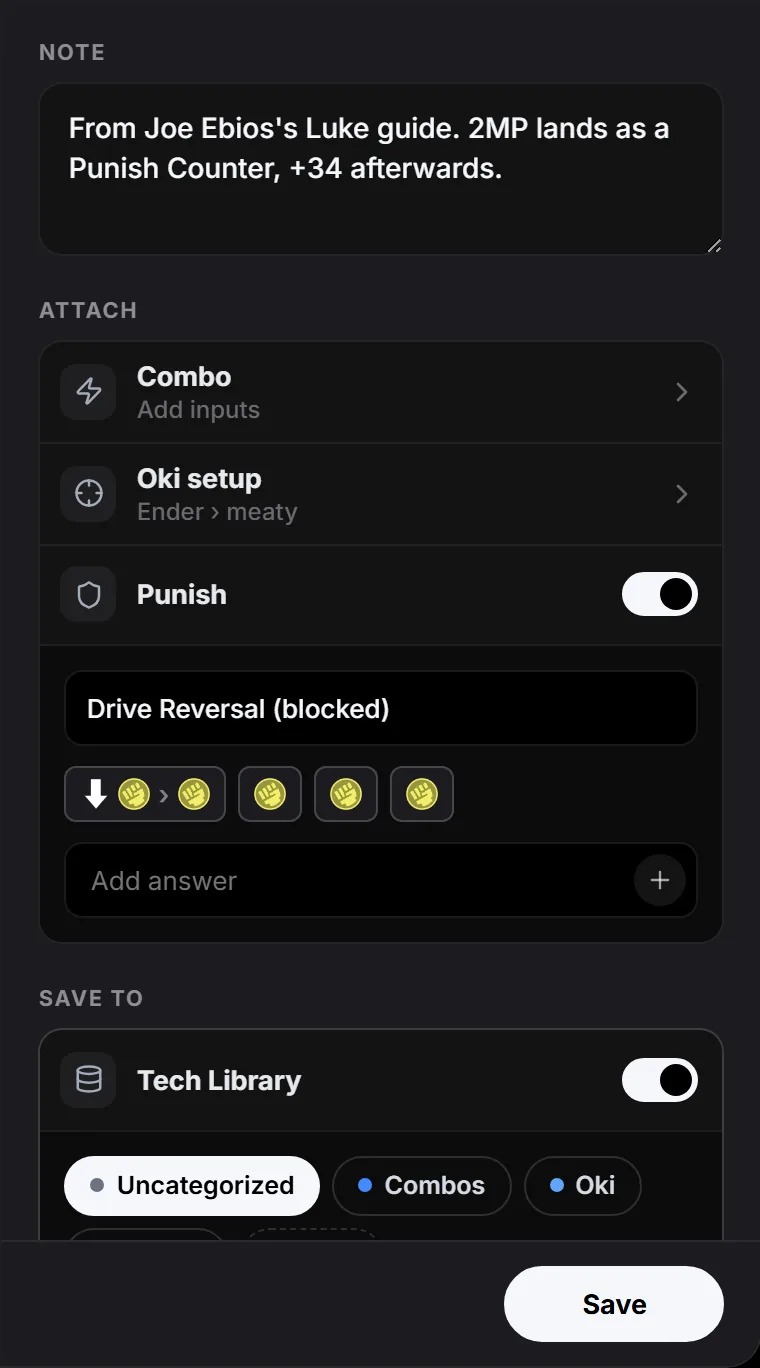
The Timestamp Preview loops the clip so you can check it. Write what happened, then attach a Combo or an Oki setup, or switch on Punish to record the opponent's action and your answer.
Save it to your Tech Library
Turn on Tech Library and choose a category to save the clip as a Tech entry too. Select Save to add the clip to your note.
Study pro replays
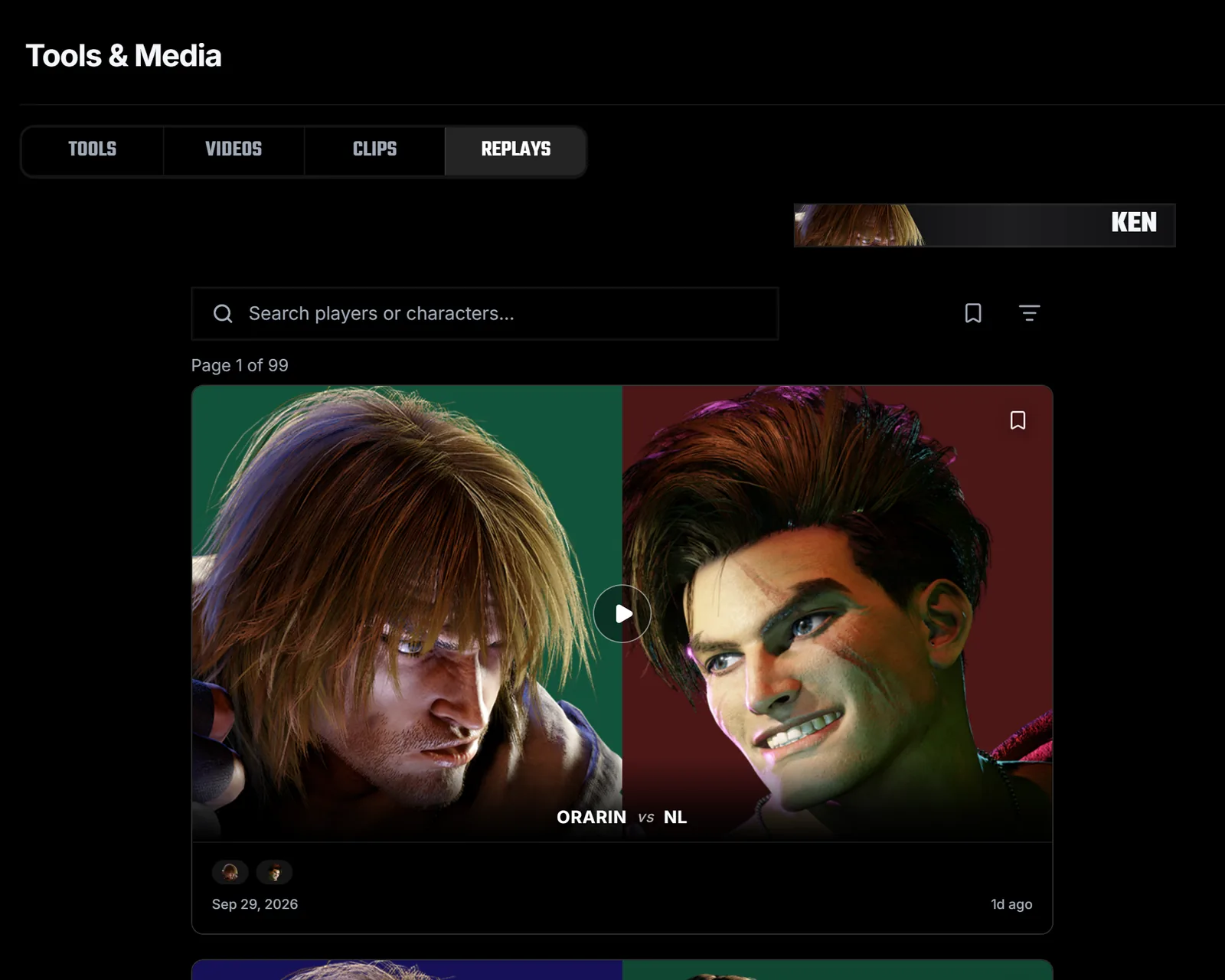
Replays lists pro matches for your game. Search by player or character and filter by matchup. A replay first asks which side you are studying, then lets you write in that character's notebook or the matchup notebook.
Add to tasks. Spotted something you need to fix? Select Add to tasks in the study panel. The task keeps a link to that moment, so you can rewatch it from your Task list.