How to Use Timestamped Notes
Save the exact moment from a video, clip, guide, or replay so you can rewatch it, tag it, and turn it into practice material.
What It Does
Timestamped Notes save the exact moment from a video, clip, guide, or replay.
Use them when you see a combo, oki setup, punish, mistake, matchup answer, or idea you want to watch again later.
Save One Timestamp
Save a single timestamp when one moment explains the idea better than a long note.
- Open a replay, video, clip, or guide.
- Go to the moment you want to save.
- Open
Notesbeside the video. - Click the button.
- Add a short note.
- Add tags if they help.
- Save it.
The timestamp appears inside your note. Click it later to watch that moment again.

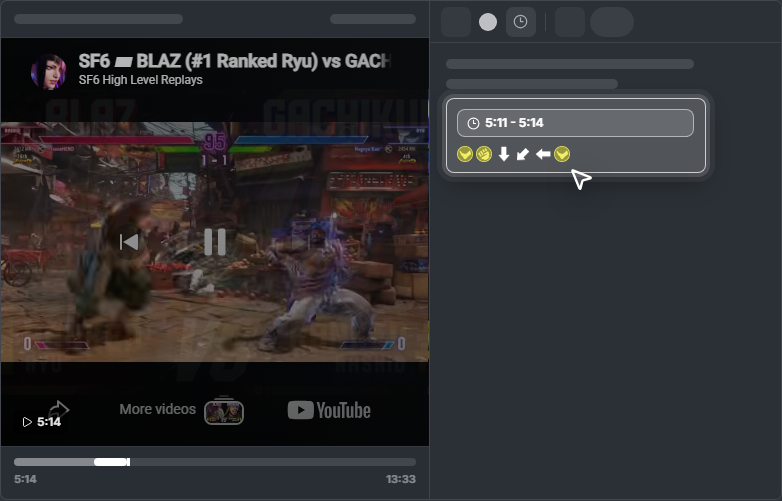
Save a Timestamp Range
Use a range when the important part lasts more than one second.
- Go to the start of the moment.
- Click the button.
- Let the video play to the end of the moment.
- Click the button again.
- Check the preview.
- Save the range.
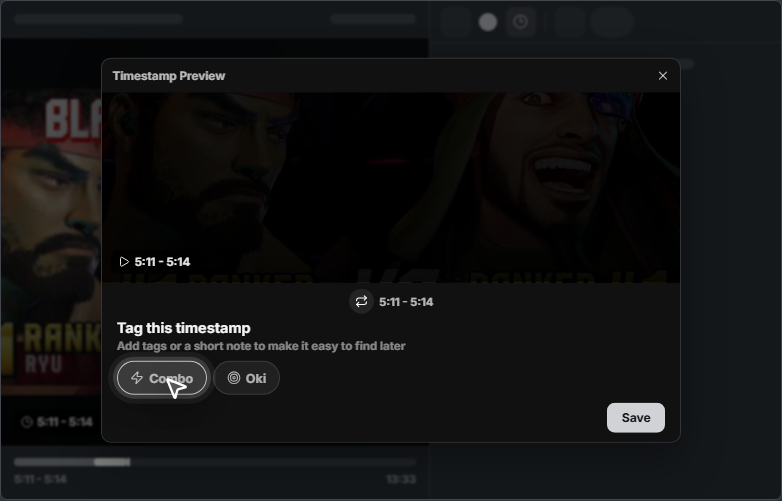
Turn a Timestamp into Practice
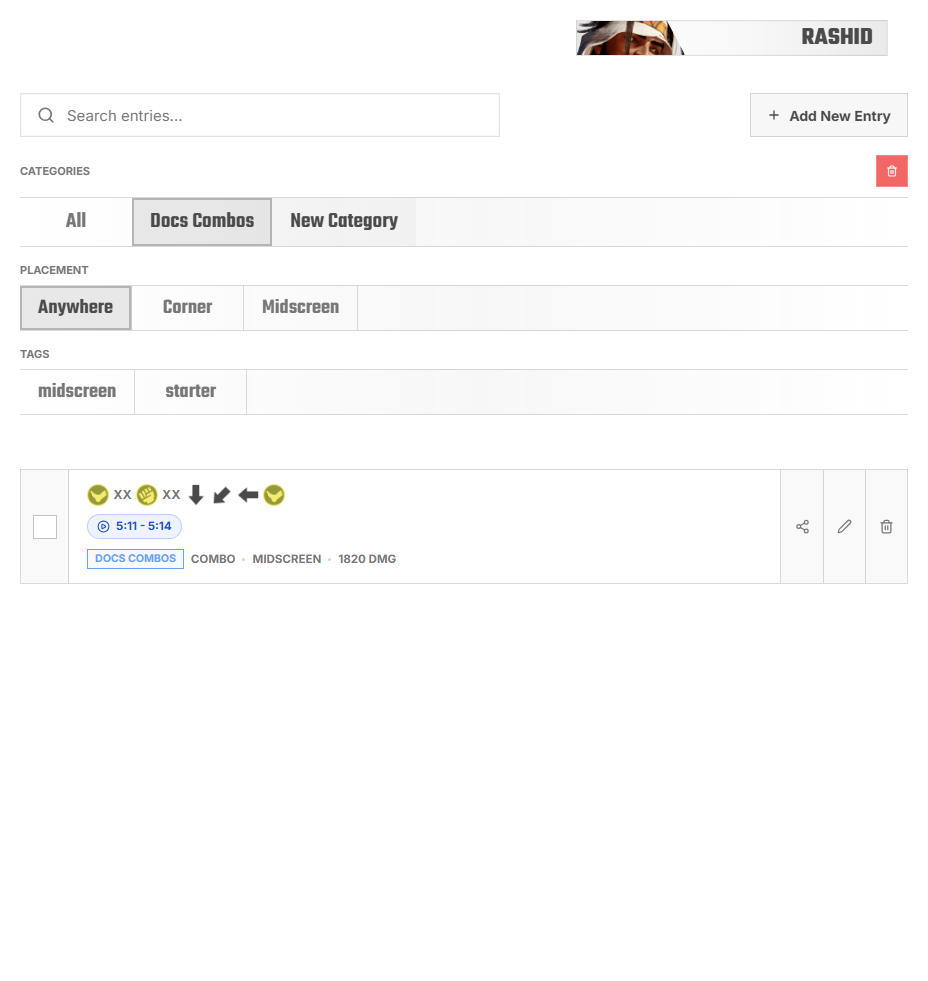
Leave a timestamp as a note when it is only a reminder. Save it to Tech Library when it is something you want to repeat.
- Good tags:
combo,punish,oki,corner,matchup,defense,mistake. - Good practice material: a
comboroute, ameatysetup, apunish, apressurestring, or amatchupanswer.
- Turn on
Save to Tech Librarybefore saving the timestamp. - Choose the matching type, such as
ComboorOki. - Save the note.
- Open
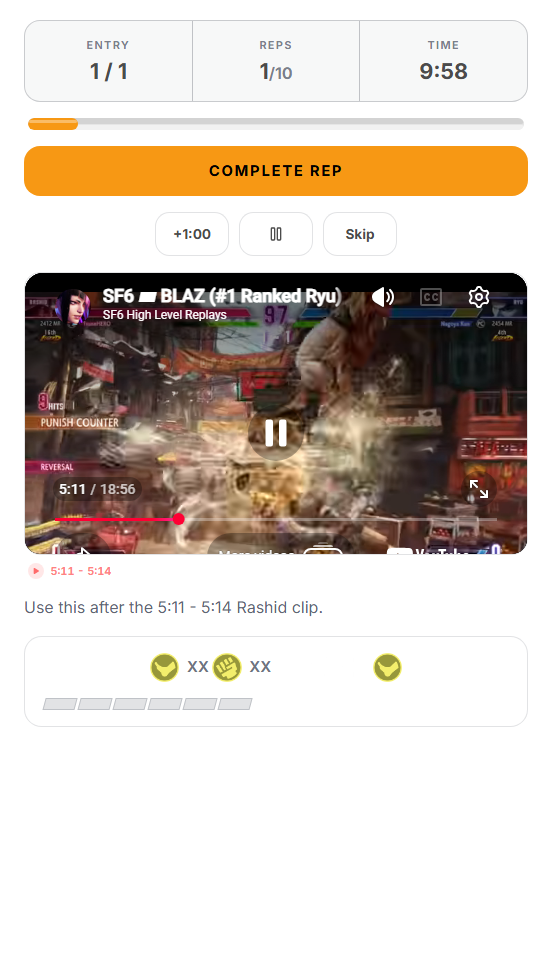
Practice. - Choose
Tech Practice. - Start the session for that saved entry.
FAQ
I do not see the clock button
Some pages and videos cannot save an exact timestamp. Write the time in the note instead.
I cannot find the timestamp later
Add tags when saving, or return to the note where you saved it.
My combo is not in Tech Library
Save to Tech Library must be turned on before saving.